Numbering in Microsoft Word: The complete guide for lawyers
 Michaelle Noble

TL;DR
- Automatic numbering is the most common Microsoft Word frustration in legal drafting because its internal structure is genuinely complex and largely hidden from users.
- Word manages numbering through a three-level system of abstract numbering lists, concrete instances, and paragraph tags. Once you understand this, unpredictable behavior starts to make sense.
- The two biggest mistakes lawyers make: using the Bullets or Numbering toolbar buttons and using Autoformat-as-you-type. Both bypass paragraph styles create inconsistencies.
- Always use the Multilevel List button and always use named list styles linked to paragraph styles. This is the only approach that produces reliable, consistent numbering in legal documents.
- LawVu Draft can generate contracts with correct numbering applied automatically from smart templates, eliminating most numbering problems before they start.
Who this guide is for and who it is not for
Before you read further, a quick orientation so you can decide whether this is the right resource for you.
This guide is for Microsoft Word power users – associate lawyers, legal engineers, knowledge managers, legal secretaries, and document specialists who get called upon whenever a Microsoft Word document behaves strangely. If you are the person in your firm or legal department who everyone comes to when numbering breaks, this guide is for you. It explains everything about how Word numbering actually works under the hood.
If you need a quick fix right now, this is not a quick-fix tutorial. It is a complete explanation of how the system works. If you want to understand Word numbering deeply enough that you can fix any problem you encounter, read on. If you just need your current document numbering corrected urgently, you may want to start with a simpler step-by-step guide and come back to this guide when you have more time.
As the saying goes: give a lawyer a fixed document and you solve their problem for today; teach them how Word numbering works and you solve it for their entire career.
Why Word numbering is so confusing for legal professionals
Microsoft Word’s numbering system was designed for flexibility across many different use cases and document types. That flexibility comes at a cost: the underlying system is complex, and most of that complexity is deliberately hidden from users behind buttons that appear simple but do unpredictable things.
This is a particular problem in legal drafting for three reasons.
First, legal documents use more complex numbering structures than most other document types. A single commercial contract might use clause numbering (1., 1.1., 1.1.1.), recital numbering (A., B., C.), party description bullets, schedule numbering, and annex numbering – all in one document. Each requires its own numbering scheme, and those schemes need to coexist without interfering with each other.
Second, legal documents have long lifespans. Contracts get recycled, adapted, and merged with clauses from other documents. Every time content moves between documents, the invisible numbering infrastructure can break in ways that are not immediately visible.
Third, legal documents require precision. A numbering error in a grocery list is harmless. A broken cross-reference in a commercial contract can create ambiguity about what provision is being referenced.
Understanding how Word’s numbering system works is not essential for anyone responsible for producing professional legal documents.
How Word numbering works: The technical foundation
Word uses a three-level numbering structure
Every numbered paragraph in a Word document is connected to a numbering scheme through three layers, each serving a different purpose.
Abstract numbering lists are blueprints. Each one defines the formatting rules for up to nine numbering levels – things like whether the number is decimal, alphabetical, or roman numerals; the indentation at each level; and the character formatting applied to the number itself. An abstract numbering list does not produce any visible numbers by itself. It is just a blueprint.
Concrete instances are deployments of a blueprint. When you apply numbering to a paragraph, Word creates a concrete instance of an abstract numbering list. Multiple sections of a document can share the same abstract blueprint but use separate concrete instances – which is how Word keeps, say, the clause numbering and the recital numbering separate even if they look similar on screen.
Paragraph tags are the connection point. Every numbered paragraph is tagged with a reference to a specific concrete instance. This is what tells Word which numbering sequence that paragraph belongs to.
This three-level structure is why numbering sometimes behaves in apparently random ways. When you copy a paragraph from one document to another, or delete a paragraph that a concrete instance was built around, or apply a toolbar button that picks an arbitrary existing abstract list to reuse – the tags and references can end up pointing to the wrong things, producing the “broken” numbering that legal professionals encounter constantly.
A single legal document typically contains multiple numbering schemes
A typical commercial contract will contain at least four distinct numbering schemes operating simultaneously:
- Main clause numbering (Article 1, Article 1.1, Article 1.1.1)
- Recital or whereas clause numbering (A., B., C. or (i), (ii), (iii))
- Party description bullets
- Schedule or exhibit numbering
Word creates a separate abstract numbering list for each scheme. If you apply numbering carelessly, Word may link a new section to an existing abstract list that was intended for a different purpose, producing subtle inconsistencies that are hard to diagnose because the visual difference may be minimal – a slightly different indentation, a different character at the second level, or a numbering sequence that behaves unexpectedly when you restart it.
List styles vs paragraph styles – and why both matter
Many lawyers are familiar with paragraph styles (which control font, spacing, alignment, and other text-level formatting) but less familiar with list styles. The two are different things and it is important not to confuse them.
A list style defines the numbering scheme: the type of number or bullet, the indentation, and the formatting of the number itself, for up to nine levels. A paragraph style defines the appearance of the paragraph: its font, spacing, color, and alignment.
The powerful combination is linking the two. When a paragraph style is linked to a specific level of a list style, applying that paragraph style to a paragraph automatically assigns it to the correct numbering level. Changing the indent level automatically switches to the correct paragraph style. The two systems work together, producing numbering that is consistent and predictable rather than dependent on which button a lawyer happened to click.
This is the correct way to set up numbering in legal documents, and it is the approach that eliminates most of the unpredictable behavior that creates frustration.
The two things you should never do
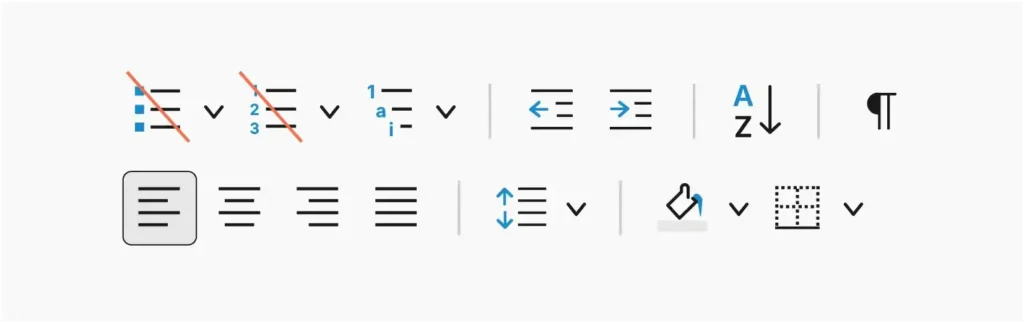
Never use the Bullets or Numbering toolbar buttons
The Bullets button and the Numbering button in Word’s Home tab look like the obvious tools for adding numbered lists. For legal documents, they are a trap.
When you click either button, Word applies whatever numbering scheme it thinks is most appropriate given where your cursor is. If your cursor is below an existing list, Word will continue that list – which may or may not be what you want. If your cursor is anywhere else, Word will apply whatever abstract numbering list it last used, which could be one from a completely different section of the document, or even from a different document you had opened earlier in the same session.
The result looks correct at first glance but introduces inconsistencies in the underlying numbering structure. Over time, as the document grows, these inconsistencies compound. Numbering becomes unpredictable. Section numbers jump. Levels behave differently in different parts of the document. The document starts to feel “broken.”
There is a second problem with these buttons: they apply numbering as local formatting rather than through paragraph styles. This completely bypasses the style system, which means the numbering is not connected to any named style, cannot be updated globally, and will create conflicts if you later try to apply styles properly.
Never use Autoformat-as-you-type
By default, Word automatically converts text that starts with certain characters into numbered or bulleted lists. Type an asterisk followed by a space, and Word creates a bulleted list. Type “a.” and Word creates an alphabetical list.
The effect is identical to clicking the toolbar buttons described above – it applies local formatting, bypasses paragraph styles, and introduces the same kinds of invisible inconsistencies. For a grocery list or personal notes, it is a helpful shortcut. For legal documents, it is a source of formatting problems.
You can disable Autoformat-as-you-type entirely by going to File, then Options, then Proofing, then Autocorrect Options, then Autoformat as you type. It takes some digging to find, but disabling it is worth it if you draft legal documents regularly.
The right approach: Always use the multilevel list button
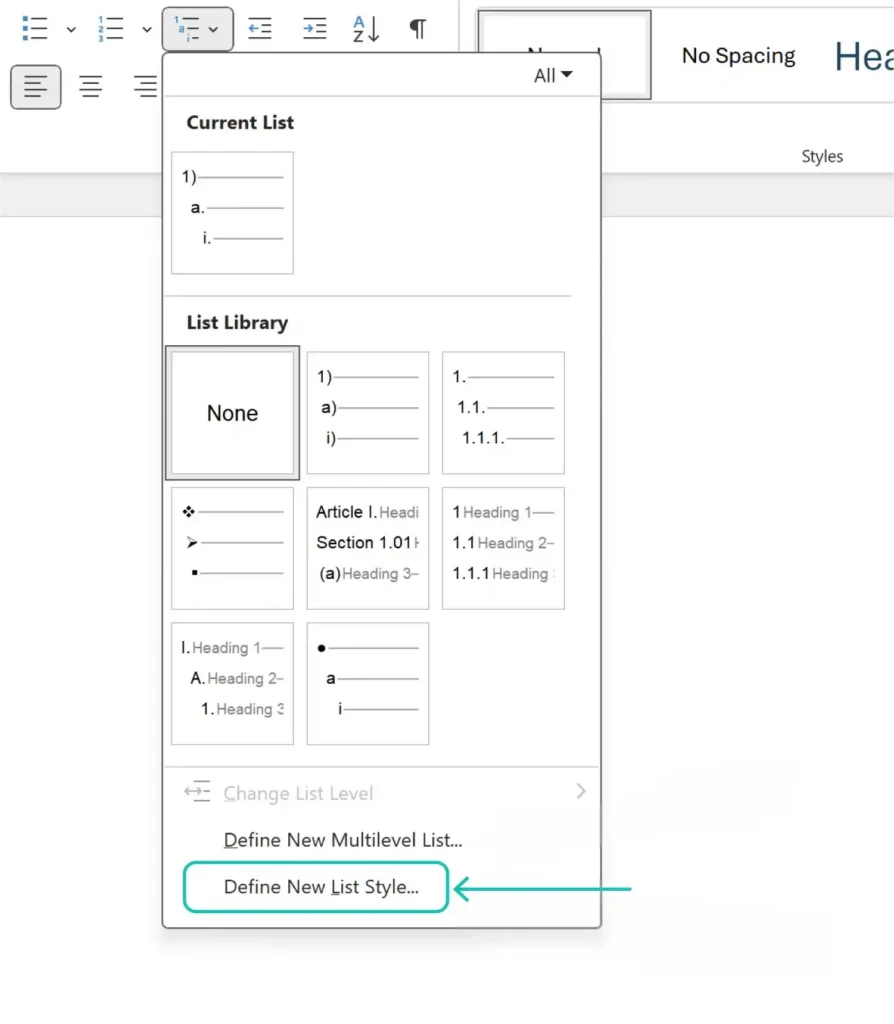
The correct tool for numbering in legal documents is the Multilevel List button, found in the Paragraph group of the Home tab. This button gives you control over the full structure of your numbering scheme rather than letting Word make the decision for you.
When you click the Multilevel List button, the dropdown offers two important options.
Define New Multilevel List creates an ad hoc abstract and concrete numbering list. It works but produces an unnamed list that is harder to manage across a document.
Define New List Style creates a named list style associated with an abstract numbering list. This is the option to use for legal documents. The name makes the style identifiable and manageable, lets you link it to paragraph styles, and allows it to be stored in templates, so it is available consistently across all documents of a given type.
The setup takes a few extra minutes the first time. For a document type you will use repeatedly – an NDA, an MSA, an employment agreement – it is time well spent. Once the named list style is set up correctly and saved in your template, every document of that type will have consistent, reliable numbering from the moment you open it.
Tired of numbering problems slowing down your drafting?
Linking list styles to paragraph styles
The most powerful and reliable setup for legal document numbering links list styles to paragraph styles so that the two systems work together automatically.
Here is how the connection works. In the list of style definitions, you assign a paragraph of style to each numbering level. For level one, you might assign “Heading 1” or “Article Heading” or whatever your firm’s style is called. For level two, you assign the corresponding sub-clause style. And so on for as many levels as your documents use.
Once this link is set up:
- Applying the level one paragraph style to a paragraph automatically assigns it to level one of your numbering schemes
- Using the Increase Indent or Decrease Indent buttons to change the numbering level automatically switches the paragraph to the corresponding paragraph style
- The document stays internally consistent because the numbering and the paragraph styles are synchronized rather than independently applied
This setup does require an initial configuration of investment. But for document types that are used repeatedly, the investment pays for itself many times over in time saved and formatting problems avoided.
Fixing numbering problems in existing documents
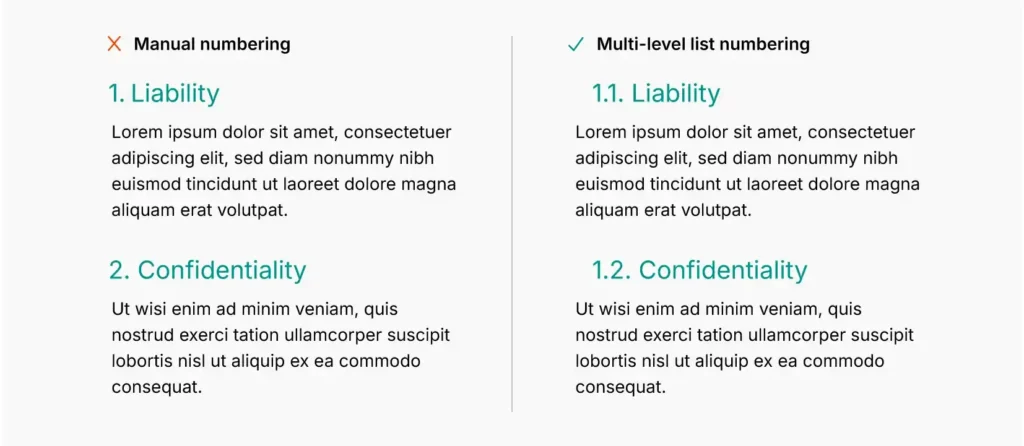
Despite best intentions, most legal professionals will encounter existing documents with broken or inconsistent numbering. Here are the most common problems and how to approach them.
Numbering that restarts unexpectedly is usually caused by multiple concrete instances of the same abstract numbering list being applied to sections that should be part of the same continuous sequence. Right-click the number where the restart occurs and look for “Continue Numbering” – this links the paragraph to the previous concrete instance rather than starting a new one.
Numbering that jumps levels or uses wrong formatting usually indicates that local formatting was applied rather than paragraph styles, and different paragraphs are tagged to different abstract numbering lists. The cleanest fix is to reapply paragraph styles throughout the affected section, which overrides the local formatting.
Numbering that looks correct on screen but breaks after changes is the classic sign of a document with inconsistent numbering infrastructure. The only durable fix is to clean up the underlying structure – typically by selecting all the numbered paragraphs and reapplying on the correct list of styles. In severe cases, the most efficient approach is to paste the document content into a fresh document with a correct set up template.
To inspect what is happening under the hood, rename a copy of your .docx file to .zip and open it. Inside the word subfolder, the numbering.xml file contains all the abstract and concrete numbering lists, and document.xml contains the paragraph tags. Reading these files requires some familiarity with XML, but they reveal the true structure of what Word is doing – which is often very different from what the document appears to show.
Marginal numbers and special numbering cases
Legal documents sometimes require numbering schemes that do not fit the standard multilevel list approach. The most common are marginal numbers – single-level numbers that appear in a fixed position regardless of document layout changes, often used in legal briefs and court filings.
Word provides several field-based approaches for marginal numbers.
SEQ fields create a sequence counter that increments each time the field appears in the document. They are flexible and reliable for documents where you need a counter that is independent of paragraph indentation levels.
LISTNUM fields produce a result like standard list numbering but implemented as a field rather than a list tag, giving more direct control over the numbering behavior.
AutoNum, AutoNumLgl, and AutoNumOut fields are legacy approaches that produce numbered lists tied to the document heading structure. They are less commonly used now but still appear in older legal document templates.
Each approach has tradeoffs in terms of flexibility, editability, and how they behave when the document is modified. For most legal documents, SEQ fields provide the best combination of reliability and control for marginal numbering.
Storing numbering in templates
The most efficient way to ensure consistent numbering across all documents of a given type is to build the numbering structure correctly once and store it in a Word template (.dotx file).
A template that contains a correctly configured list of styles linked to appropriate paragraph styles means every document created from that template starts with the right numbering infrastructure already in place. Lawyers who use the template do not need to understand how the numbering works – they just use the paragraph styles, and the numbering takes care of itself.
This is the organizational investment that pays the largest long-term dividend for legal teams that produce high volumes of documents. A well-built template is a reusable asset that multiplies the benefit of the upfront configuration to work.
LawVu Draft can build on this foundation further. LawVu Draft can generate contracts from smart templates that incorporate correct numbering structures alongside approved clause language, producing complete first drafts with consistent formatting applied automatically. For legal teams and firms that want to move beyond manual template management entirely, LawVu Draft can create documents from structured clause libraries where numbering is handled at the generation level rather than managed manually in Word.
Yunna Choi, Head of Legal Operations and Innovation at Axel Springer, described the value of having AI work within the Word environment rather than alongside it:
“Many solutions require lawyers to work in separate platforms with Word-like text editors, which adds unnecessary friction. LawVu Draft’s deep integration with Microsoft Word was a major advantage for us. It supports our team in their existing workflow rather than forcing a system change, while also allowing us to fully leverage Word’s native formatting and tools.”
Cross-references and numbering
Cross-references are deeply connected to Word’s numbering system and deserve specific attention in a guide for legal professionals.
When you insert a cross-reference to a numbered clause (Insert, then Links, then Cross-reference), Word creates an invisible bookmark at the target location and inserts a field code in the referencing paragraph that points to that bookmark. The visible result – “Article 4.1” or “clause 3(b)” – is generated by reading the number from the target paragraph’s concrete numbering instance.
This system has a critical vulnerability: if the target paragraph is deleted, its numbering level changes, or it is moved in a way that disrupts the bookmark; the cross-reference breaks and displays “Error! Reference source not found” instead of the clause reference.
For legal documents, where clauses are regularly deleted, merged, and reorganized during negotiation, this means broken cross-references are a persistent hazard. The practical implications are:
- Always update all fields before finalizing a document (Ctrl+A, then F9)
- Review cross-references carefully after any significant structural reorganization
- Consider a dedicated proofreading pass focused only on cross-references before a document goes out
LawVu Draft can catch broken cross-references automatically. AI scans the entire document and flags any cross-references that point to locations that no longer exist, missing definitions, unresolved placeholders, and other technical errors – before the document leaves your desk.
Key takeaways
- Word’s numbering system uses three layers: abstract numbering lists (blueprints), concrete instances (deployments), and paragraph tags (connections). Understanding this structure explains most of the unpredictable behavior lawyers encounter.
- Never use the Bullets or Numbering toolbar buttons in legal documents. They apply local formatting, bypass paragraph styles, and create invisible inconsistencies that compound over time.
- Never rely on Autoformat-as-you-type in legal documents. It produces the same problems as the toolbar buttons.
- Always use the Multilevel List button and create named list styles linked to paragraph styles. This is the only approach that produces consistent, reliable, and maintainable numbering.
- Store correctly configured list styles in Word templates, so every document of a given type starts with the right numbering infrastructure.
- LawVu Draft can generate contracts with correct numbering applied automatically from smart templates and can catch broken cross-references and other technical errors before documents go out.