“Error! Reference source not found” in Word: What it means and how to fix it
 Michaelle Noble
If you have ever seen “Error! Reference source not found” appear in a legal document, you are not alone. Here is exactly why it happens, how to fix it, and how to stop it from happening again.
TL;DR
- “Error! Reference source not found” appears in Microsoft Word when a cross-reference points to a paragraph or bookmark that has been deleted or moved.
- It is one of the most common formatting errors in legal documents and frequently makes it into final drafts undetected.
- The fix for existing errors is to delete the broken field and recreate the cross-reference manually or update all fields in the document.
- The long-term solution is better document workflow: tools that catch broken cross-references automatically before a document leaves your hands.
- LawVu Draft’s Refine features auto-scans contracts for invalid cross-references, missing definitions, unresolved placeholders, and other errors, inside Microsoft Word.
What does “Error! Reference source not found” mean?
If you have seen this message appear in a legal document, you have run into one of the most common and most embarrassing formatting errors in legal drafting. It shows up in a document where a cross-reference once pointed to a specific clause or paragraph, but that target no longer exists.
The result is a document that goes out to a client, counterparty, or colleague with visible error text where a clause number should be. For the reader, it is confusing. They see language like “as set out in Error! Reference source not found” and have no idea what provision is being referenced.
For the lawyer who sent it, it is the kind of mistake that is easy to make and hard to catch on a quick read-through, because the error only appears after certain actions in Word, like printing, updating fields, or copying sections between documents.
Here is exactly what is happening and how to fix it.
Why this error happens in Microsoft Word
The short answer: Microsoft Word tracks cross-references using invisible internal codes tied to specific locations in the document. When the target location is deleted or significantly changed, Word loses the reference and displays the error instead.
The longer explanation: When you insert a cross-reference in Word (for example, “as defined in Article 4.1”), Word does not store this as plain text. Instead, it inserts a special field code that links to an invisible bookmark attached to the target paragraph. Internally, Word tracks this as something like “_Ref19612197” with no knowledge of what that paragraph actually says.
Every time Word updates its fields (which happens when you print, press certain keyboard shortcuts, or select and refresh text), it checks whether the bookmarked target still exists. If the paragraph was deleted, moved in a way that disrupted the bookmark, or if someone copied a section containing the cross-reference into a new document without bringing the target along, Word cannot find its reference point and displays the error.
The key problem is that Word has no understanding of what the cross-reference is actually referring to. It does not know that “_Ref19612197” is supposed to be pointing to your limitation of liability clause. It only knows that the invisible marker it is looking for is gone. This is a fundamental limitation of how Word handles document structure: it treats cross-references as pointers to locations, not as references to legal concepts.
When does this error typically appear?
Several common situations in legal drafting trigger this error.
Deleting or reorganizing clauses. If you remove a clause that another provision of cross-references, every reference to that clause will break. This happens constantly in contract negotiation, where clauses are deleted, merged, or restructured through multiple drafts.
Copying sections between documents. If you copy a paragraph that contains a cross-reference from one document and paste it into another, the target bookmark does not travel with it. The cross-reference breaks immediately.
Heavy editing near bookmarked text. Significant editing around a bookmarked paragraph, particularly deleting and retyping the paragraph number or heading, can destroy the invisible bookmark without the drafter realizing it.
Accepting tracked changes. Accepting a deletion that includes a bookmarked paragraph removes the target. Any cross-references to that paragraph break the next time fields are updated.
Converting between document formats. Moving content between Word, Google Docs, and PDF can corrupt or lose the invisible bookmarks that cross-references depend on.
How to fix “Error! Reference source not found”
There are several approaches, depending on how many broken references you have and whether you can identify the intended targets.
Fix 1: Update all fields in the document
Sometimes the error appears because fields have not been refreshed. Try pressing Ctrl+A to select all text, then F9 to update all fields. If the error resolves, the bookmark was still intact and just needed refreshing.
This fix works only when the target paragraph still exists, and the bookmark is intact. If the paragraph was actually deleted, this will not help.
Fix 2: Delete and recreate the cross-reference manually
This is the most reliable fix when the target has been deleted or moved.
- Select the entire error text (the words “Error! Reference source not found” will appear highlighted or shaded)
- Delete it
- Use Insert > Links > Cross-reference to create a new cross-reference pointing to the correct target paragraph
This requires you to know which clause the broken reference was supposed to point to, which may require reviewing an earlier version of the document.
Fix 3: Find and replace all error instances
If your document has many broken references, use Find and Replace (Ctrl+H) to search for the error text and identify each location. This helps you systematically work through every broken reference rather than catching them by eye.
Fix 4: Replace with plain text temporarily
If you need to send the document urgently and do not have time to recreate every cross-reference properly, you can replace the broken field with plain text as a stopgap. Right-click the error, select “Toggle Field Codes,” and you will see the raw field code. Delete it and type the clause reference as plain text. Note that this creates a reference that will not update automatically if clause numbers change later.
Why this error is so easy to miss
This is an uncomfortable part. “Error! Reference source not found” does not always display visibly when you are editing a document. It appears when fields are updated, typically at print time or when you explicitly refresh fields. If you review your document on screen without triggering a field update, the reference may display correctly or appear as an empty space, with the error only becoming visible when the recipient opens or prints the document.
This means that broken cross-references frequently survive multiple rounds of review and reach counterparties or clients in final documents. It is one of the most common technical errors that makes it into executed legal agreements.
Try LawVu Draft for free
The bigger problem: Word was not built for legal documents
The cross-reference error is a symptom of a deeper issue. Microsoft Word tracks cross-references as pointers to invisible bookmarks, with no understanding of the legal content those references are pointing to. Word does not know that your cross-reference to Article 4.1 is a reference to a non-solicitation obligation. It only knows that Article 4.1 used to be at a certain location in the file.
This creates a fragile system for legal drafting, where reorganizing a contract, deleting a clause, or copying sections from one document to another can silently break references throughout the document. The lawyer must manually catch every broken reference on review, which is time-consuming and easy to miss.
The same limitation applies to other common legal document errors: unused definitions that were once referenced but have since been removed, defined terms that are used but never defined, placeholders that were not filled in before the document was finalized, and inconsistent terminology where the same concept is referenced by different names in different clauses.
None of these errors are things Word checks for automatically. They all require a careful manual review, which is exactly the kind of task that is easy to skip under deadline pressure.
How purpose-built legal drafting tools handle cross-references
The fundamental issue with Word’s cross-reference approach is that it ties references to document locations rather than legal concepts. A more robust approach is to tie cross-references to the content or function of the clause being referenced.
When a cross-reference points to “the non-solicitation clause” rather than “bookmark _Ref19612197,” it retains its meaning even if the clause moves, is renumbered, or is temporarily removed and replaced. If the referenced clause is missing, the tool can identify that a reference exists without a valid target and flag it clearly, including what type of clause is expected.
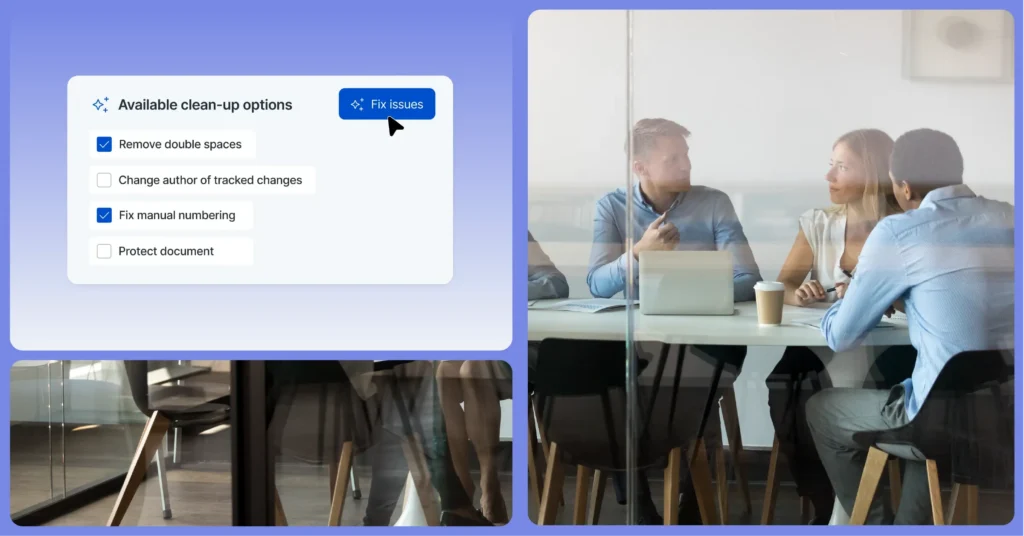
This is the capability built into LawVu Draft. Rather than waiting for you to notice a broken reference, Draft automatically scans the contract for:
- Invalid cross-references: References that point to a location that no longer exists
- Missing definitions: Capitalized defined terms that are used in the contract but never defined
- Unused definitions: Terms that are defined but never actually referenced
- Unresolved placeholders: Brackets, blanks, or placeholder text that was not filled in before the document was finalized
- Incorrect dates: Date fields that may be inconsistent or incorrect
All of this refinement happens inside Microsoft Word, without requiring lawyers to switch to a different application or change their drafting workflow.
Yunna Choi, former Head of Legal Operations and Innovation at Axel Springer, described why this kind of in-Word capability matters for adoption:
“Many solutions require lawyers to work in separate platforms with Word-like text editors, which adds unnecessary friction. LawVu Draft’s deep integration with Microsoft Word was a major advantage for us. It supports our team in their existing workflow rather than forcing a system change, while also allowing us to fully leverage Word’s native formatting and tools.”
Yunna Choi, former Head of Legal Operations and Innovation at Axel Springer
Key takeaways
- “Error! Reference source not found” occurs when a Word cross-reference points to a bookmark that no longer exists, because the target paragraph was deleted, moved, or lost during copying between documents.
- The error does not always display on screen during editing; it often only becomes visible at print time or when fields are refreshed, which means it frequently reaches final documents undetected.
- The manual fix is to delete the broken field and recreate the cross-reference, or to update all fields if the bookmark is still intact.
- The longer-term solution is a document workflow that catches these errors automatically before the document leaves your desk.
- LawVu Draft’s Refine features auto-scans for invalid cross-references, missing definitions, unresolved placeholders, and other technical errors, catching the issues that manual review misses.